
Your support team answers the same question all day: where is my order? The answer sits in your order system, behind an API your developers built years ago. The AI assistant your team uses can't see it, so someone copies the order number into one window and pastes the status back into another.
MCP removes that copy and paste. The Model Context Protocol is an open standard that lets AI apps such as Claude, Cursor and your own agents call your systems as tools. You put a small MCP server in front of the API you already have, and every app that speaks MCP can use it.
This guide builds one in Python with Intelli, the Python library in IntelliNode. You'll connect it to Claude Code, then reuse the same server in a flow that writes a morning brief and apology emails with nobody typing a thing.

MCP server vs API: what changes
Your API doesn't change at all. An API is built for programs that already know its endpoints, its parameters and its error codes. A model doesn't know any of that.
The MCP server sits in front of the API and describes each task in plain words, such as "look up one order by its ID". The app shows those descriptions to the model, the model picks a tool, and the server makes the real API call with your key.
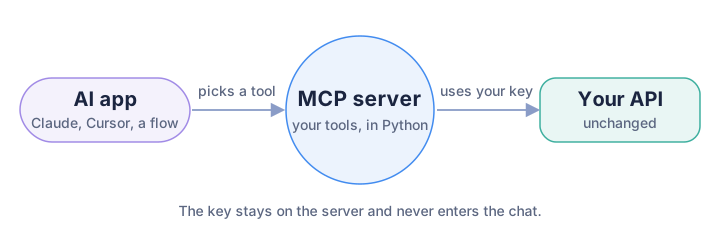
The app talks to the MCP server, and only the server talks to your API.
So the real work is choosing the tasks. You don't need a tool for every endpoint. Our example has two: look up one order, and list the late ones. Start with tools that only read. Tools that change data, such as refunds, can come later with a person approving each one.
The guide uses three small files: a stand-in for your API, the MCP server, and a flow that uses it. Download them, or copy them from the links in each step.
Then in a terminal, open the folder you unzipped and install Intelli with its MCP extra:
pip install -U "intelli[mcp]"
You need Intelli 2.1.0 or above and Python 3.10 or above. We ran everything in this guide on Intelli 2.1.3.
Step 1: Start the API, or use your own
The example comes with orders_api.py, a tiny orders API with five sample orders. Like most internal APIs, it refuses any request without an API key. Start it and leave it running:
python orders_api.py
It answers on http://localhost:8001. To point the server at your real API later, set ORDERS_API_URL and ORDERS_API_KEY before you start it. Nothing else in this guide changes.
Step 2: Describe your tasks as tools
Open orders_mcp_server.py. Each tool is an ordinary Python function with one decorator:
server = MCPServerBuilder("Orders", stateless_http=True)

@server.add_tool
def get_order_status(order_id: str) -> dict:
    """Look up one order by its ID, such as A1042. Returns the customer, status, carrier and expected delivery date."""
    return call_api(f"/orders/{order_id}")
The function name, the type hints and the docstring become the description the model reads. Write the docstring for someone who has never seen your API, and give an example value: "such as A1042" saves the model a guess. call_api is a six line helper in the same file that adds the key header and sends the request.
Plan for wrong input too. When someone asks about an order that doesn't exist, the tool returns "Not found. Check the order ID, which looks like A1042." instead of an error code. The model reads that sentence and asks the user for a better ID.
Step 3: Run it on your computer or share it
The same file runs in two modes, and the last lines pick one:
if "--http" in sys.argv:
    server.run(transport="streamable-http", mount_path="/mcp")
else:
    server.run(transport="stdio", print_info=False)
The default, stdio, is for apps on your own computer. You never start it by hand: Claude Code, Claude Desktop or Cursor start the server when they need it and talk to it through its input and output. The MCP spec says a stdio server may write nothing else to its output, which is why print_info=False turns off the startup banner.
To share the tools with your team, run it over HTTP instead:
python orders_mcp_server.py --http
The tools are now at http://localhost:8000/mcp. Before anyone outside your machine uses it, put it behind the login or gateway you already use for internal services.
Step 4: Connect it to Claude Code, Claude Desktop or Cursor
In Claude Code, add the server with one command. Use the full path to the file, because Claude Code starts it from its own folder:
claude mcp add --transport stdio orders -- python /full/path/to/orders_mcp_server.py
If you installed Intelli in a virtual environment, replace python with the full path to that environment's Python. For the shared HTTP version, the command is claude mcp add --transport http orders http://localhost:8000/mcp.
Type /mcp in Claude Code to check that the orders server is connected with two tools. Then ask in plain words:
Where is order A1042, and why is it late?
Claude picks get_order_status, asks your permission the first time, and answers from what your API returned: the order is with UPS, it missed the truck at the Leeds warehouse, and it's now due on 21 October.
Claude Desktop and Cursor read the same server from a JSON file. In Cursor it's .cursor/mcp.json in your project, and in Claude Desktop it's the file that opens from Settings, then Developer, then Edit Config:
{
  "mcpServers": {
    "orders": {
      "command": "python",
      "args": ["/full/path/to/orders_mcp_server.py"],
      "env": {"ORDERS_API_URL": "http://localhost:8001", "ORDERS_API_KEY": "demo-key"}
    }
  }
}
The env block is where your real API's address and key go. They stay in that file on your computer, not in the chat.
Step 5: Use the same server in an Intelli flow
A chat answers one question at a time. A lot of the value sits in work that runs on its own, such as a brief that's ready before the operations manager starts the day.
An Intelli flow is a small graph of steps, and an MCP server can be one of them. morning_brief.py has three steps. The first calls list_delayed_orders on your server. The other two read the result at the same time: one writes the manager's brief, the other drafts an apology email for each late customer.
late_orders = Agent("mcp", "mcp", "Get the late orders", {
    "command": sys.executable, "args": ["orders_mcp_server.py"], "tool": "list_delayed_orders"})
writer = Agent("text", "openai", mission, {"key": os.environ.get("OPENAI_API_KEY"), "model": "gpt-5-mini"})

flow = Flow(tasks=tasks, map_paths={"late_orders": ["brief", "customer_emails"]})
The map_paths line is the whole wiring: the late orders feed both writing steps. Before it runs anything, the flow draws itself:
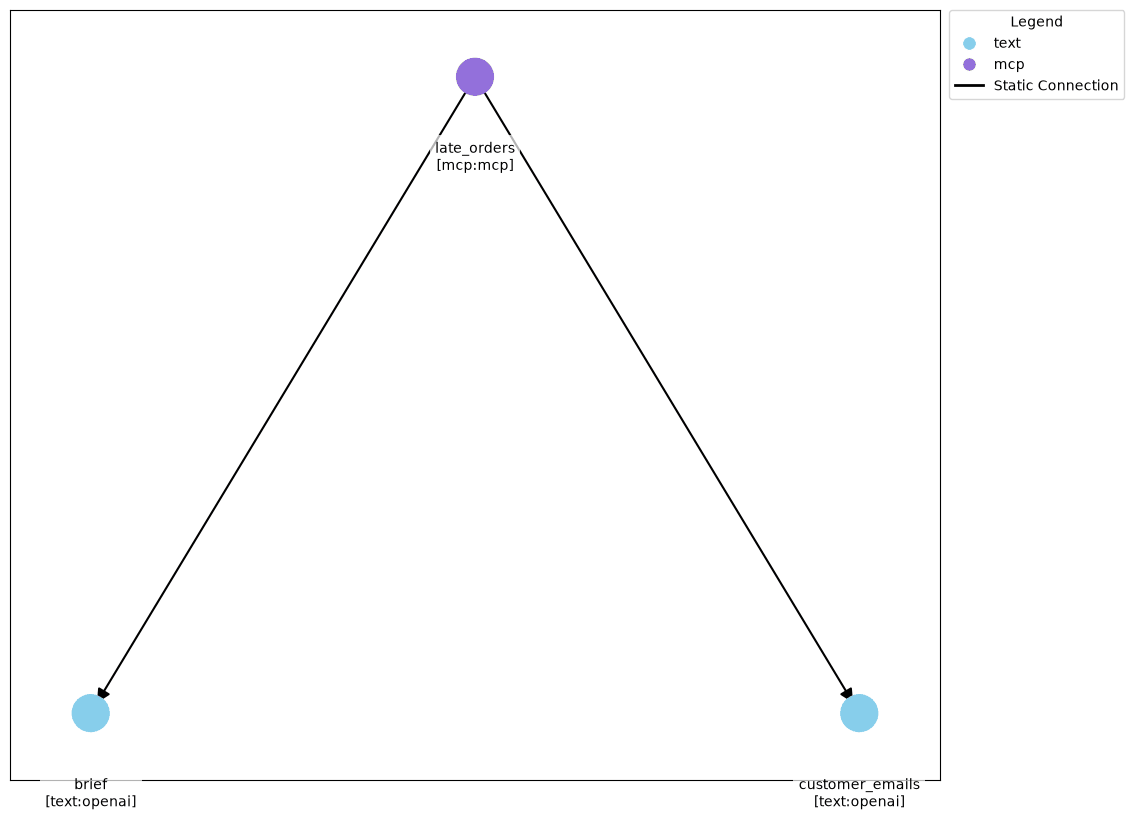
The purple step calls your MCP server. The two blue steps write, and they run at the same time.
Drawing calls no model and needs no key, so you can check the plan first. Set your key and run it:
export OPENAI_API_KEY="your-key"
python morning_brief.py
The flow starts the MCP server itself, so only orders_api.py needs to be running. To use Claude instead, change the writer's provider to anthropic, pick a Claude model, and pass your Claude key.
Run it on a free local model
The writer can also run on your own machine with no key and no per-call cost. Install Ollama, pull a model, and swap the writer line for the commented one in the file:
ollama pull qwen2.5:3b
writer = Agent("text", "vllm", mission, {"model": "qwen2.5:3b"}, {"baseUrl": "http://localhost:11434"})
We ran the flow on Qwen2.5 3B, a 1.9 GB download, on a laptop. The whole run took about 15 seconds. This is one of the emails it drafted, using the reason and date from the API:
Hi Diego, Hope this message finds you well. We regret the delay in your order due to out-of-stock
items. The new expected delivery date is October 23, 2026.
One thing we learned: when the instruction said only "the new delivery date", the small model sometimes made up a date. So the step now names the field, "the date in the expected field", and we read the emails before they go out. For text customers will see, a hosted model or a larger local one such as Qwen2.5 7B gets the details right more often.
To get the brief every morning, run python morning_brief.py from cron or the scheduler you already use.
Before you share it with your team
The example is ready to try. These four habits make it ready for real data:
- Keep tools read-only at first. Add tools that change data later, each one approved by a person.
- Keep keys in environment variables on the server, never in a tool argument the model fills in.
- Return only the fields the task needs. If the model doesn't need a customer's phone number, the tool shouldn't send it.
- Put the HTTP version behind a login. Claude Code sends a token with
--header "Authorization: Bearer your-token", and an Intelli MCP step takes the same header inheaders.
Where to go next
Your API now works with any app that speaks MCP, and your flows can call it like any other step. From here:
- The MCP server and MCP client docs list every option, including SSE servers and timeouts.
- Tool routing lets a model pick which tool to call inside a flow, instead of you naming it.
- Working in JavaScript? MCP in Node.js covers the same server and client in IntelliNode.
- Want a coding agent to build flows like this for you? Give IntelliNode to Claude Code or Codex.